THE CONTROLLER / OBSERVE, INSPECT, INTERVENE
A window into
the experiment.
The models do the evolutionary work. We watch and listen for something we did not expect.
The ambition is an enduring experiment: AI models propose behaviours, write successive generations of node firmware, run comparisons and assess what changed. The wall brings that work into human sight and hearing—for curiosity, amusement, intuition and the moment when something refuses to fit our idea of normal.
The Korvo gives the experiment a shared clock and world state, hosts its controls and records, and makes the flock inspectable. Manual controls let you reproduce a run or introduce a change. They are one way into the instrument; the human does not need to invent and score every experiment.
01 / THREE DIFFERENT JOBS
Coordinate.
Express. Notice.
The AI development team
A long-running coordinator, such as Meta Muse Wonder, can assign node-specific work to Muse Spark agents. They formulate experiments, propose code, examine failures and compare generations. The build and deployment computer compiles candidates, installs supported firmware and collects the evidence needed for the next decision.
The Korvo and the panels
The Korvo owns the implemented simulation clocks and consolidated world state. Its browser pages can close while a run continues. Panel firmware expresses the selected behaviour through light and supported sound, and returns observations and status. The frontier models run outside these microcontrollers.
The human observer
Watch a hesitation, hear an unexpected rhythm, notice a recurring disagreement. You can change the environment or introduce a question without taking over the models’ experimental work. An interesting pattern can prompt a new comparison; it does not have to arrive as a polished theory.
The documented standalone controller is version 0.9.0. Its lab computes learning on the Korvo; panel journal receipts establish stored data, not learning performed by each panel. External model work and firmware compilation require a development host.
- Start at the physical overview. Sixteen tiles correspond to A1–D4. Tap one to inspect its reported firmware, uptime, free RAM and reading age.
- Read freshness before interpreting activity. LIVE means a fresh response. NO REPLY, ERROR, STALE and WAITING distinguish missing or old information. A live response does not certify every peripheral.
- Open Missions when you want to intervene. Tap Scenario and Goal to cycle their choices. Duration switches between 64 and 96 seconds; Repeat toggles on/off. START queues the chosen mission; STOP requests a fleet stop. Read the result rather than assuming a tap reached every panel.
- Open Learning lab for browser access. Use the address displayed by your own controller. It also shows the current six-digit operator PIN for fleet/planner writes; the PIN changes on reboot.
The 800×480 touchscreen keeps the physical flock and its current status close at hand. Open the controller’s browser interface for the planner, detailed comparisons and downloadable records.
03 / THE BROWSER AT /
Choose a mission.
Read what actually happened.
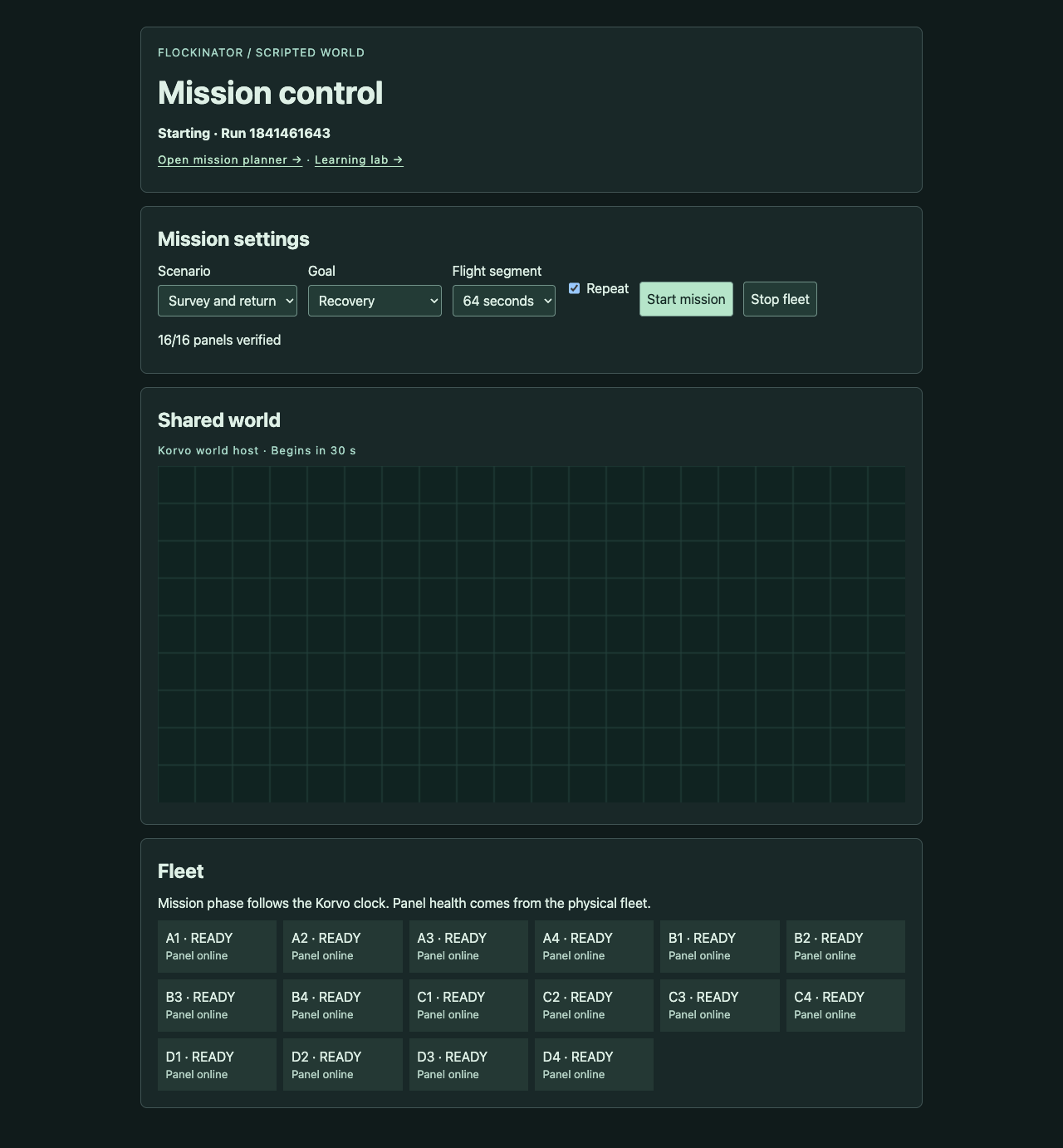
A manual walkthrough
- Open the Korvo’s local address in a browser. Wait for controller state to load; disconnected controls cannot start a run.
- Choose a scenario, then a goal, flight-segment duration and whether to repeat.
- Select Start mission and provide the controller’s current operator PIN when requested. Scripted starts include a one-minute countdown for authenticated commands and readbacks.
- Inspect the dispatch result and any unverified panels. Read the shared-world phase separately from physical-panel health.
- Use Stop fleet to request a stop. Closing the browser leaves the Korvo-hosted run running.
The current choices
| Setting | Choices in 0.9.0 |
|---|---|
| Scenario | Mixed outcomes / Survey and return / Link disruption |
| Goal | Observe / Compare reports / Recovery |
| Flight segment | 64 or 96 seconds |
| Repeat | On / off |
These select a scripted simulation. They are not navigation commands for real aircraft.
04 / THE BROWSER AT /planner
Rehearse a question.
Keep the record.
SCREEN MAP / SOURCE-DERIVED
Mission planner
Scenario seed → Generate scenario
Flight plan
Pattern · Units · Cover ·
Battery
Run rehearsal / Pause / Edit plan
Contact reports → Exercise memory → ZIP journals
- Enter an optional scenario seed and choose Generate scenario to create repeatable search conditions.
- Choose Tree-line fan or Search grid, 4/8/16 deployed units, Open/Patchy/Dense cover and 16/30/44 battery points per unit.
- Use the map tool to move the focus, place contacts or plot a unit waypoint. Coordinate inputs provide an alternative to clicking the board.
- Read Return margin and Visibility, then select Run rehearsal. Pause to inspect; use Edit plan to revise.
- Compare contact reports with planner truth, then download the selected rehearsal’s ZIP journals. Director truth is recorded separately from unit observations.
This shared rehearsal runs on the Korvo while physical panels continue their scripted mission. Battery points are board-game energy units. A panel receipt is reported after its SD copy is read back and compared byte for byte.
05 / THE BROWSER AT /lab
Change the conversation.
Compare the outcome.
SCREEN MAP / SOURCE-DERIVED
Communication lab
World seed + Peer signal
Scrambled / Muted / Half lost
Clear train → Clear test
Clear train → Altered test
Private
clues alone
World replay → Choose a unit
Private clue + received symbols
- Choose a World seed and the altered Peer signal: Scrambled, Muted or Half lost.
- Select Start experiment. Sixteen simulated learners form four teams; a team recovery requires three of four correct sector choices.
- Compare clear communication, altered communication and private clues alone. Memory freezes after 48 training rounds; testing follows.
- Use Pause and the Test round slider to inspect a round. Turn off Follow live round when examining an earlier event, then choose a unit to see its private clue and received symbols.
Use the comparison to ask what communication contributes and how learned conventions survive interference. The current lab learns symbol meanings on the controller; it is distinct from the external AI process that develops successive firmware generations.
THE NEXT GENERATION
Leave room for
the unexpected.
Once the instrument is running, the centre of attention can move away from its controls. Let the model team pursue the hard, repetitive work of proposing, testing and revising. Watch and listen for a pattern worth bringing back to them.
Explore the enduring evolutionary experiment → · Introduce Kulira →
Walkthrough checked against the repository’s Korvo 0.9.0 README, touchscreen implementation and mission, planner and lab source. Screen maps are simplified illustrations of those pages. No control on this companion website operates your hardware.